Showing posts with label organization. Show all posts

Thursday, April 21, 2016

Food Monster App

I'm back! It's been a while, I know. Lots going on. I promise I have a large backlog of photos and recipes to share with you all and plan to do so in the very near future. Looking forward to some fresh spring vegetable dishes!

I've also been checking out some great apps and recipe books, and I've got one to talk about here, as it will be released imminently.

If you haven't checked it out already, One Green Planet is a website with an admirable mission, self-described as "your online guide to making conscious choices that help people, animals and the planet." They approached me last year about featuring some of my recipes on the site, and I was more than happy to oblige.

The One Green Planet site has a lot going on. They feature plenty of animal interest pieces, videos and other headlines, a lifestyle section with tips and ideas, and stories about caring for the planet. They also happen to have a huge section on food that is good for you, the planet and the environment (right on!). Their hand-picked selection of recipes is thoughtful and features some delicious dishes, so I was excited when they announced they would be releasing a new app!

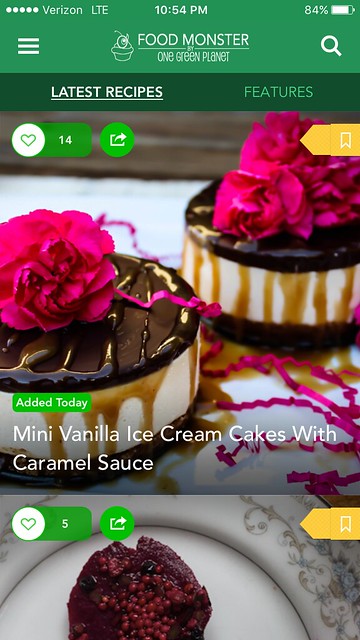
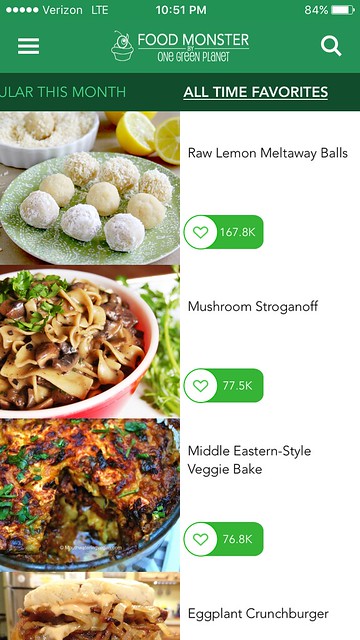
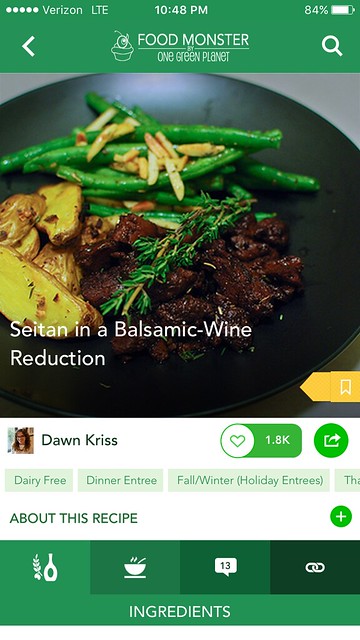
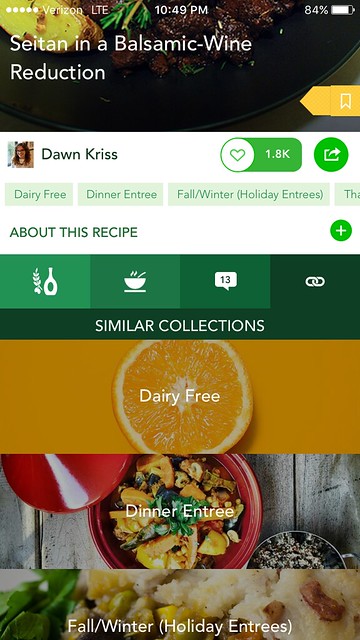
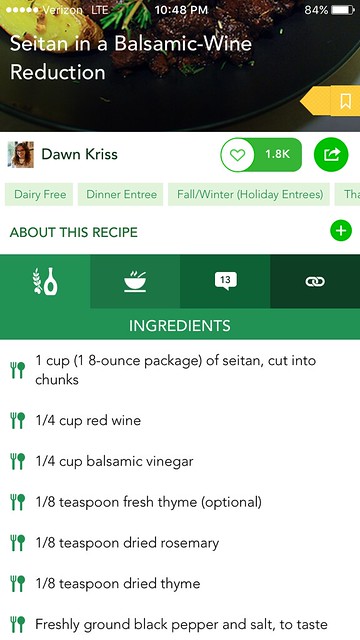
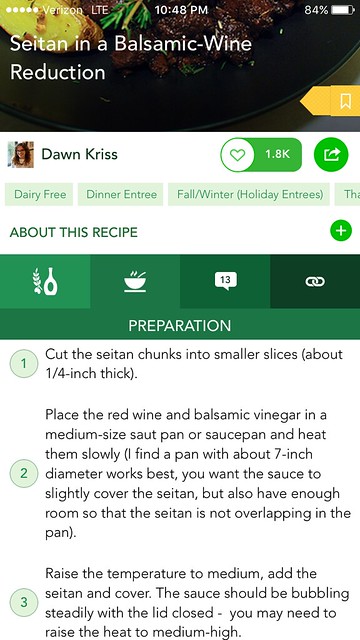
Food Monster screenshots

They've asked me to review their new app--it is called Food Monster and it features over 5000 vegan recipes, with approximately a dozen new recipes planned to be added each day.

Food Monster screenshots

It is super easy to navigate and read, which I definitely appreciate. Where it really excels is in the curation of the recipes. (Did I mention they have many of my recipes on there? Like my kimchi tofu tacos, balsamic seitan, and barbecue apricot meatballs)

Food Monster screenshots
They have great categories like seasonal and holiday recipes, as well as some more unusual ones, like "umami" and "spiralized veggies"--over 100 different categories in total. You can also search by ingredient or by your specific dietary restrictions (including gluten-free, raw, soy-free and many  more). They have essentially categorized these recipes in about every way you can imagine, which is the wonderful thing about viewing your recipes on this kind of platform. The options are unlimited!

It has many other features which I'd expect in an app like this, you can "love" recipes, see what's trending and also bookmark recipes to save them for future access. Seeing what's popular or similar to the recipe you have just viewed can be a great place to start when trying to find a quality meal.

And you can easily share links with anyone you'd like using the arrow in the top of the screen (I especially like this feature!).

Food Monster screenshots


The ingredients lists are easy to read and straightforward, and they really try to focus on simple, fast, delicious recipes.

Food Monster screenshots

The directions are similarly well-presented.

Food Monster screenshots

There are a few things I could do without--some of the recipes have "3-D photos" that kind of jump around very quickly on the screen. Although I don't mind a slow pan, I'd really much prefer to just have my food images in one place as I'm browsing through recipes. Occasionally the app can also be a little slow to load, but I am hopeful they will improve on this with time.

What's the catch? A subscription is required to access the recipes. It is $1.99 a month which is pretty reasonable, so you can always try it out and see if it strikes your fancy! If you do like it, it's worth paying $19.99 for the one year subscription.

The app will be released tomorrow, on Earth Day, but today they're offering special early access to all my readers, so here's a link to check it out!

Sunday, September 13, 2015

Kitchen Tour Time!

20150831_veganeats_0030


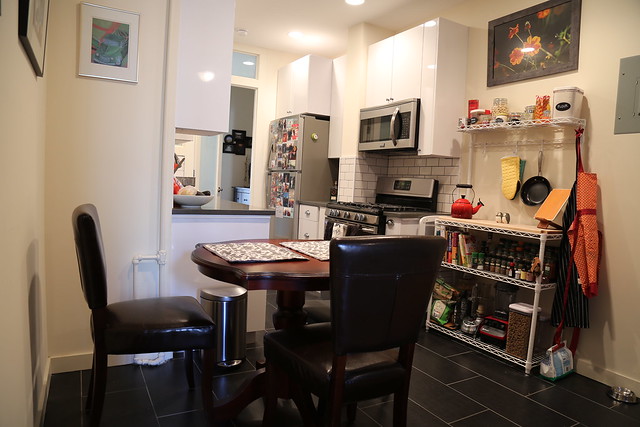
Living in New York City definitely inspires creative space-saving solutions in your kitchen.

We just moved to Brooklyn this past year, and have since expanded our kitchen storage considerably, though by the average American standards, I suppose our kitchen is still a bit small.

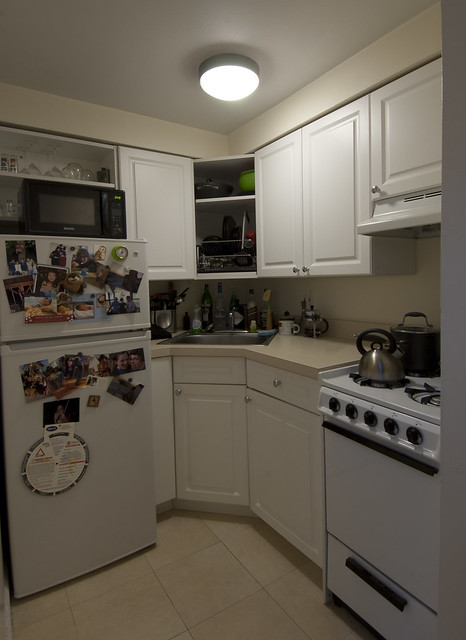
I was actually quite impressed with all of the creative ways in which my boyfriend had re-arranged his teeny Manhattan kitchen when I moved in with him several years ago (see below). The microwave went above the refrigerator. Behind that? More storage, which needed to be accessed with a step stool (at least by me). He had removed the doors from the cabinets so that we could still access the area, even with the microwave partially blocking it. He also removed the cabinet door over the sink, and dedicated the shelf directly above the kitchen sink to the drying rack, which was actually quite genius because our only counterspace was about 14" square!

Untitled

In order to have more shelf space, we opted for multiple, but rather short shelves, which meant we had no place for tall cereal boxes, so cereal would come out of the box when we bought it, and be stuffed on the shelf inside of its bag. It was quite a tight space, but we definitely made it work!

These days we have a lot more space (relatively speaking!)...and I've expanded our storage even further with a great baker's rack.

20150125_ProspectHeights_0044

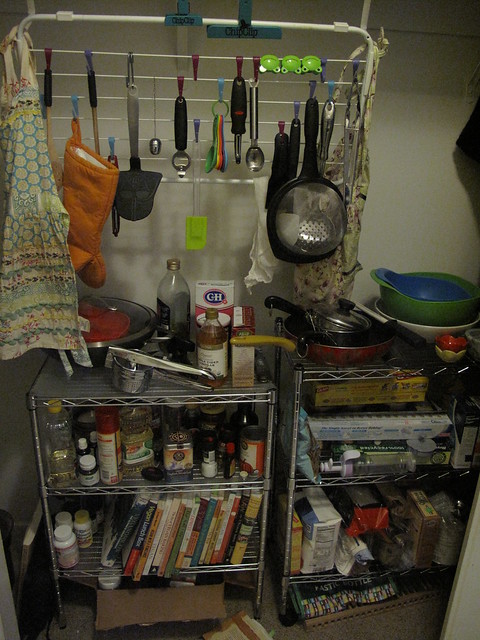
It's a big step up from my kitchen storage during graduate school:
Untitled

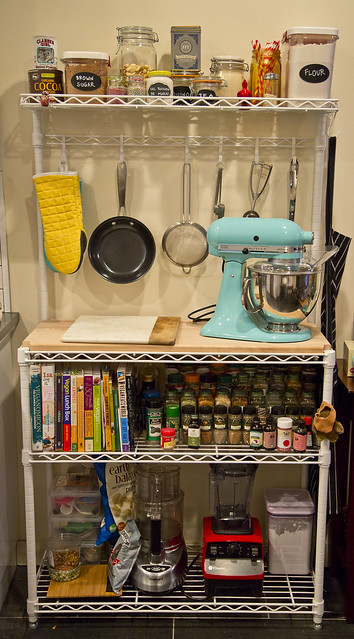
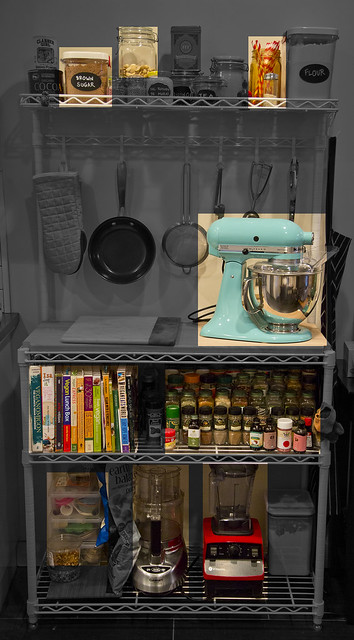
Our new baker's rack, with a butcher's block, is perfect for storing my favorite cookbook go-tos, spices, and baking supplies, while also supplying an additional counter space. We got this at the Container Store and they have a lot of great options for building your own setup.

butcher's block

Since we are going on a kitchen tour today, I thought I'd talk to you about a few of my kitchen essentials.

The top shelf of this rack is perfect for little odds and ends that I use frequently in baking and cooking--we keep all of the sugars, the all-purpose flour, and some various other sundries up here. I love to use the little chalkboard labels on our containers, because if you end up using the containers for something else down the line, you simply wipe off the name, and write in the new one! I also keep our gigantic cashew jar up here (which is always running low), and some straws for smoothies. We like the Susty party straws since they are made in the USA of sustainably harvested compostable paper, and they come in a bunch of fun colors!

We try to keep one side of the butcher's block clear for prep space while cooking, but it's also a great place to keep the stand mixer off of our main countertop. We recently acquired the stand mixer as a wedding gift and it gets a lot of use! I've made several batches of homemade pasta, loads of vegan ice cream, and of course it's also great for mixing batters and especially icing (like for all of those cupcakes!).

On the next shelf, we have some of my favorite cookbooks (there's not space for all of them here, unfortunately!), as well as the spices. Having access to all of my spices was really important to me, since I'm constantly grabbing them as I cook, so I thought a lot about how I'd like to store them. Ultimately this little stepped, expandable shelf worked great. We also put a clear liner on this shelf to keep things from wobbling around and potentially falling through.

Finally, on the bottom, I've got some small bins to store all of my baking supplies, mixer attachments, etc. Then there's our large food processor (essential for shredding, and making things like pesto and dips), and finally, our Vitamix. The Vitamix was a big investment when I bought it several years ago, but if you're an avid vegan cook it is a real lifesaver. It makes nut-based sauces a real breeze, and I'm not sure I could make some of the harder vegan cheeses without it. It's also fabulous for making anything from sorbets to soups! It even comes with a recipe book that includes many great vegan options. And cleanup is a real breeze. I may not use it everyday, but it gets used several times a week at least and I really don't know what I would do without it!

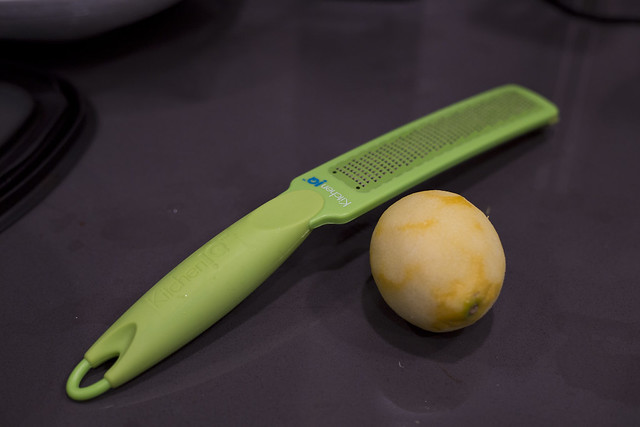
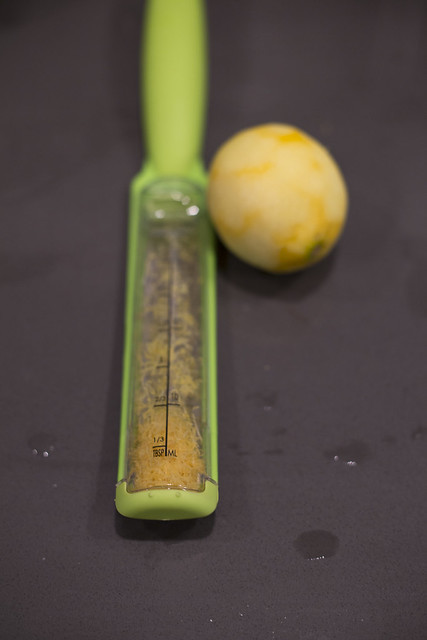
And we have an amazing zester--another wedding gift!

I'd always hated zesting before we got this thing--the zesting holes on our grater were so teeny tiny that it often felt like I was juicing the fruit rather than zesting the rind, and getting all of the excess zest out of the grater was such a pain, if not impossible! Plus, constantly checking to see how much zest you have gets old really fast. This Kitchen IQ zester totally changed the game.

20150831_veganeats_0032

Somehow it zests remarkably quickly, you can check how much zest you have on the back (brilliant!) and the container in the back has this nifty feature where it actually scrapes against the grater as you remove it--ensuring you get every last bit of zest out of there!

20150831_veganeats_0036

The rest of our kitchen is relatively straight forward.

BK kitchen

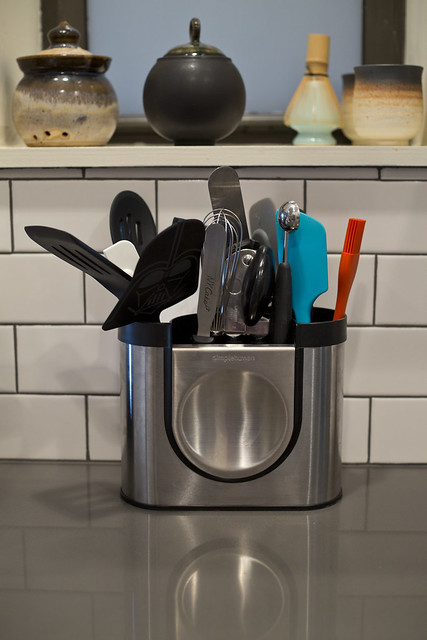
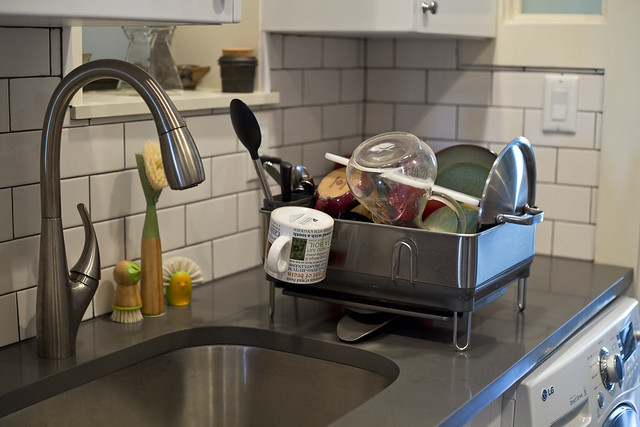
We have a great Simple Human utensil holder (above) with a built in spoon rest (which just slides off of the front), and a Simple Human dish rack (below) that while on the pricier side, I am pretty much convinced is one of the best dish racks on the planet.

BK kitchen

Well--that was quite a full post! I hope I've left you with lots of food for thought!

Tuesday, April 23, 2013

Making a Cookbook

Looking for a way to share your new favorite recipes with your friends or family?

Last year, when my brother began eating a vegan diet for health reasons, I wanted more than anything to be able to share some of my favorite recipes with him. Sure, I could have just emailed him a few...but those would easily have been lost in the email netherverse. And besides, I wanted to create something more concrete and special, a true cookbook that he could use for years to come.

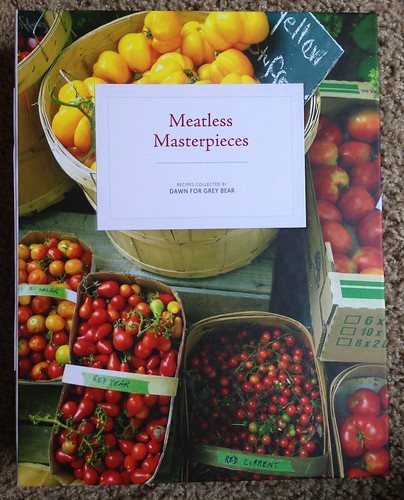
I discovered the Tastebook site somewhat by accident, but was thrilled to discover that it had everything I was looking for. On Tastebook, you can start by choosing a theme for your book (I went with "Meatless Masterpieces"), and the site will create a template with recipes that fit within that theme. You can choose to include all or only some of their suggestions, and add as many of your own recipes as you like as well.

Untitled

If you've been using a recipe manager like Paprika, let's say, it's very easy to copy and paste your own recipes into Tastebook and include them in your book. Tastebook includes wonderful images for you to use with their suggested recipes, and they make it very easy to upload your own images as well. The site also allows you to save your recipes in a personal online database, so that you can easily access them whenever you like. With links to the Food Network and Epicurious cooking sites, among others, they offer a wide range of truly excellent recipes for you to comb through.

You can organize and insert your recipes as you'd like. The book comes with suggested categories which are separated into sections with tabbed dividers; you can organize and rearrange these as you see fit. You can also easily generate a table of contents, and create a dedication page, if you'd like.

The book itself can be on the pricey side--if you go with their suggested book it will be $39.95. They do, however, offer the option to order pages individually which can save you some money. If you order more than one book at a time they will also discount the price. And if you join the site (it's free) they often have promotions around major holidays, etc. The quality is truly excellent, and with their "binder style" presentation, and the inclusion of several blank pockets in the back of the book, you can add recipes as you like (the book will store up to 100 recipes comfortably).

I think this is a great gift idea for birthdays, Mother's Day, etc. My brother couldn't believe how professional the cookbook looked, and neither could I!

Sunday, February 3, 2013

Paprika Recipe Manager

How do you organize your recipes?

I meant to post this entry in January, for anyone who may have resolved to get their life a little more organized in 2013. This app is perfect if you're an active cook who'd like to have an easy way to keep all of your recipes in one place.

With so many ways to access recipes these days (online, in ebooks, magazines, or regular old recipe books), keeping everything organized can be a bit overwhelming.

For many years I've been searching online for recipes, or using recipes from my cookbooks, as well as those from friends and family. After I amassed many cookbooks, bookmarked dozens of recipes, and started a Word document with some of my favorites, things quickly became jumbled in my head. It was often hard to track down things I'd made, and I'd find myself needlessly searching through many different sources just to find a recipe I'd used a few months or even weeks ago.

Enter the iPad...! When I received an iPad for Christmas in 2010, I never could have imagined it would have a place in my kitchen. My kitchen was overly crowded as it was, and I worried about the device taking up valuable counter space. I had an even harder time imagining an effective program that would allow me to quickly and easily enter and access all of the information that I needed. The issue of counter space was resolved by my boyfriend last year. He thoughtfully came up with an elegant solution for using the iPad in the kitchen. It requires no counter space whatsoever, because it's a wall mount (the Wallee wall mount, to be exact). The truth is there are all kinds of elegant shelving, mounting, and display solutions for your iPad, and this app also works on your iPhone, so I'll leave that part to you.

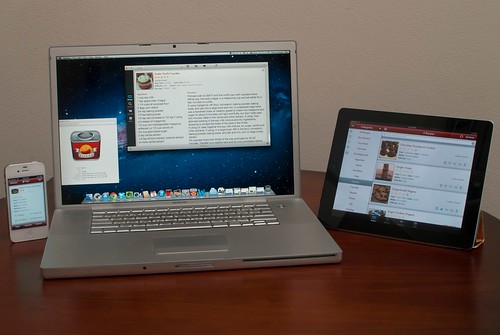
If you're looking for a fantastic app that allows you to easily access and display your recipes, I've got a great suggestion for you: it's called Paprika.
Untitled

In searching for recipe management apps last year, I stumbled upon Paprika. It's a wonderful program that I highly recommend. It's available for Mac computers, iPads, and your iPhone and it can sync seamlessly across all of your devices. If you've got a collection of recipes that you'd like to have on hand at anytime, I couldn't recommend this app more highly!
It's available through the Apple App Store, it's $19.99 for the desktop version, and 4.99 for the iPad or iPhone or Android version.

Let me show you how it works...
Screen Shot 2013-01-23 at 11.27.56 AM

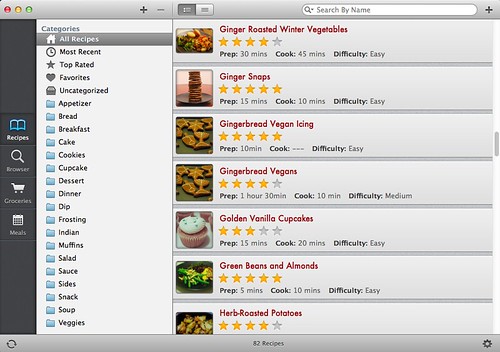
Here you can see the opening screen, which takes you to your "Recipes" screen. Notice at the top you can search recipes by name. Since I usually know exactly what recipe I'm looking for, I use this feature the most frequently. On the lefthand side of the screen, though, you can see that you can also organize recipes by category. You can create whatever categories you like (such as "Dinner", "Snacks", "Appetizers", "Cupcakes" etc.), and apply as many categories as you want to each recipe, for easy cross-referencing. You can also rate the photo with 1-5 stars, and easily add it to your "favorites" list as well.

On the far left, above, you can see four main views to select: "Recipes" (pictured above), "Browser", "Groceries" and "Meals."

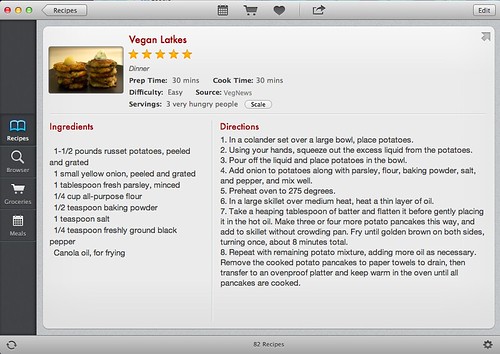
Once in the recipe view, simply click to view an individual recipe. Here is a basic recipe layout:
Screen Shot 2013-01-23 at 11.27.07 AM
Above you can see the main categories in a "recipe card." You can add your own photo, or if you import a recipe from the web it will automatically include the associated photograph. This screen also displays the ratings and categories you have assigned to the recipe. When creating a recipe card, you are prompted to enter in the Prep Time, Cook Time, Difficulty, Source of the Recipe, Servings, Ingredients, and Directions. I like the fact that they've included the option to enter "Source." It allows me to easily access the online recipes again or double-check my sources, if needed. Perhaps one of my favorite parts about having all of your recipes organized digitally is that they're so easy to share. You can easily export any recipe, either via email or printing. That means if I have my phone with me and someone asks for a recipe, I can just send it straight to them, right then and there!

If you use the iPad app, it has built in keyboard shortcuts for ingredients, including measurements (1/8, 1/4, 1/2, etc.),  and units of measurement (tbsp, tsp, cup, etc.), and even a symbol for degrees (°). This is only necessary if you're entering a recipe manually, though, you also have the option to import a recipe using the browser feature...

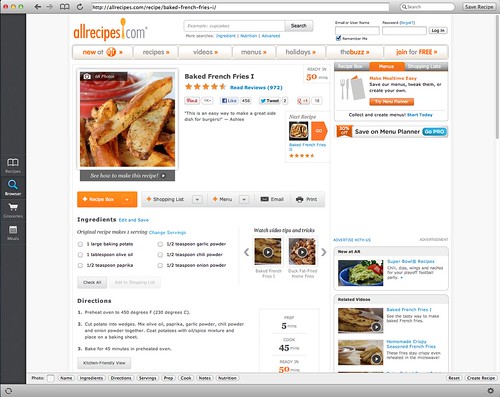
The "Browser" category (pictured below) lets you import recipes directly from the web. It's an awesome feature of this application, that allows you to put an entire recipe in your collection in literally a couple of seconds.
Screen Shot 2013-01-23 at 11.28.53 AM
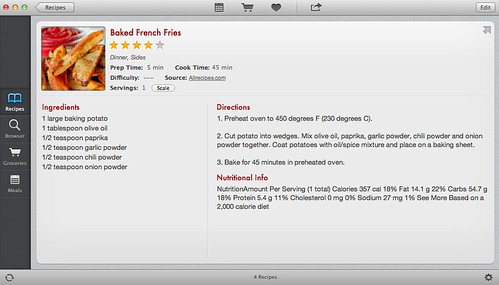
Here you can see I've searched the web, through the "Browser" feature, for baked french fries, and followed a link to a recipe on Allrecipes.com. By just clicking "Save Recipe" in the upper right hand corner of my screen, the application will instantly import all of this information into a new recipe in my library, including all of the ingredients, instructions, photo, and even preparation time and number of servings (seen below).
Screen Shot 2013-01-23 at 11.30.45 AM
Pretty great, right? In 5 seconds time I've found my recipe and saved it in my library. If for some reason the application has trouble importing your recipe, you can always simply copy and paste whatever information you'd like into the various fields. With a click of a button, you can also submit a request to the App developers to support importation of recipes from that site.

I also recently learned about the bookmarklet feature available for Paprika. It allows you to easily import recipes to Paprika when viewing them through your normal browser. It simply adds a button to your bookmark toolbar that says "Save Recipe." You just click the button when you're on a page you'd like to save, and the next time you open Paprika, the recipe will be there!
Screen Shot 2013-01-23 at 11.35.44 AM
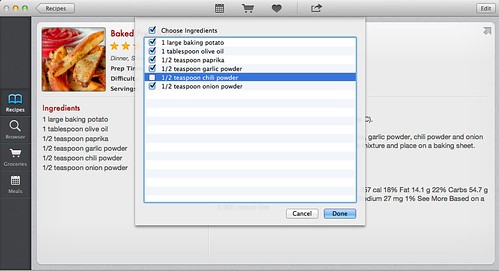
As for the "Groceries" window in the application, you can add ingredients from any recipe to your grocery list, by simply clicking the cart icon in the top of the window. The ingredients from the recipe will then be pulled up, allowing you to select or deselect any ingredients that you would like to add to your list. You can do this for as many recipes as you'd like, and of course add other items to your grocery list manually, if needed.
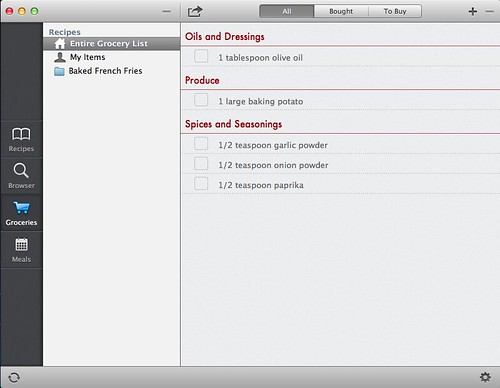
One of the best aspects of the grocery list is that it categorizes the items by area in the grocery store.
Screen Shot 2013-01-23 at 11.36.23 AM
The grocery list can be emailed or printed, but if you have the application on your phone or iPad, you can easily access it in the store!
Screen Shot 2013-01-23 at 11.34.32 AM
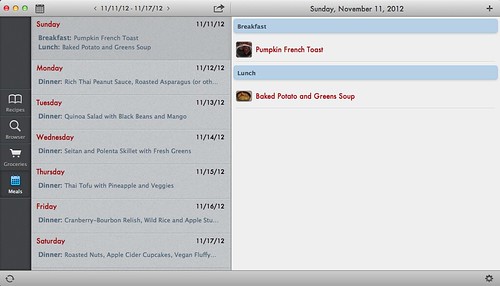
Another component of the application which you may or may not find useful, is the "Meals" feature. This allows you to enter meals into a calendar for particular days. I don't actually use this too often, but if I'm making a large meal with many different components, I find it helpful. I can then easily switch between the different recipes I'm using for that evening.

Other Notes: 
For my far-sighted readers out there: if the font looks small on the above screen shots, it is. But you can adjust font settings in the app (the font pictured above is "small" but it can be sized up to "extra-large"), so don't despair!

The app is really geared towards users cooking while using the iPad. This is the easiest way to see your entire recipe and list of ingredients on one screen (as opposed to the iPhone where you do have to click between these items, although it's relatively streamlined). Certain features on the iPad and iPhone are not available on the desktop version. I think this is limited to the "tools" feature, which pops up whenever you view a recipe on your iPad or iPhone. This feature gives you three categories: "Timers", "Converter", and "Scale Ingredients.""Timers" is just what you'd imagine; it allows you to add as many timers as you like, and you can name each one to keep track of multiple items while cooking. Converter allows you to easily convert from one measurement to another (tablespoons to teaspoons, for instance), although I find I need this infrequently, due to the "Scale Ingredients" tool. When you click "Scale Ingredients" you can scale the recipe that you are making. The program will automatically, scale the recipe to whatever quantity you select: you can 1/2 the recipe,  or multiply by any fraction or multiple up to 100.


So that's Paprika in a nutshell. It's incredibly user-friendly. Since getting it last spring, I've introduced it to some friends and family members, and everyone's loved it!